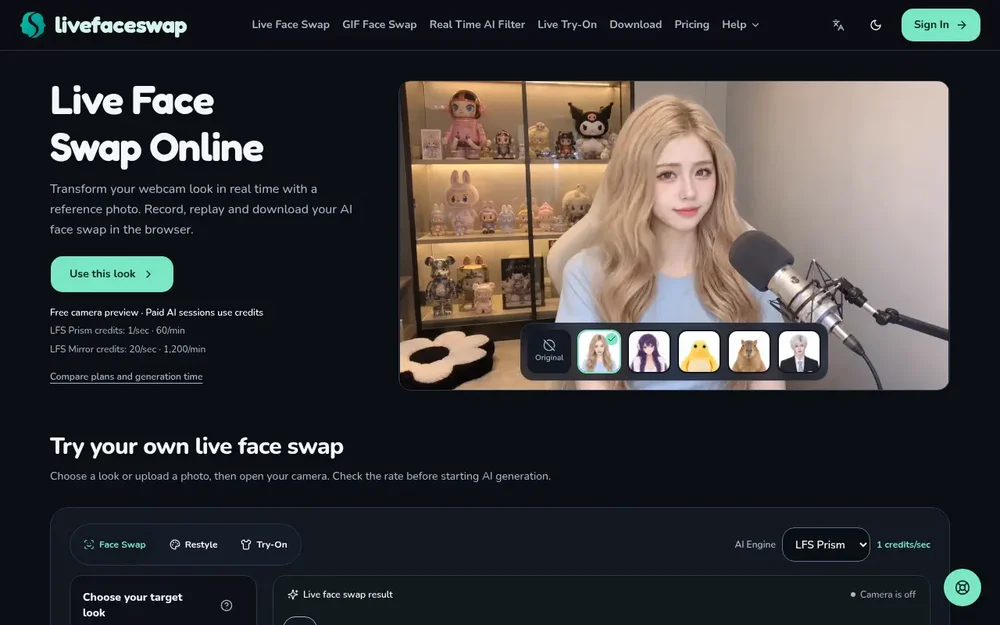
Live Face Swap is a browser-based live face swap tool for people who want to transform a webcam feed using a reference photo or preset, then record and review the result. Choose a target look, preview your camera, and start an AI session when you are ready. The generated video appears in the browser; you can record it, replay it, and save the clip. Example looks include people and illustrated or character-like options, such as anime characters and animals. Depending on the selected engine, a transformation may affect hair, clothing, or more of the character’s appearance, rather than changing only facial features.
The workflow separates camera preview from AI generation. Previewing the camera and selecting a reference do not start model processing. Starting generation sends the camera frames and reference to the selected model provider, and paid sessions consume credits. This distinction helps you check your framing and understand the displayed rate before beginning. The product is focused on transforming a live camera feed; standalone editing of a still photo is not offered on this page.
How to use Live Face Swap Online
Begin by selecting a built-in look or uploading a reference image. For an upload, the site recommends a clearly visible face with even lighting; it accepts JPG, PNG, and WebP files up to 4 MB and 16 megapixels. LFS Mirror has an additional minimum image dimension of 512 pixels on each side. Use an image you have permission to use. Choosing a reference previews it but does not begin generation.
Next, open the camera preview and check your framing and lighting. The site suggests placing the camera around eye level and using even light. You must grant camera permission to preview the feed. When you are ready to transform it, sign in if required, check the selected engine and its credit rate, and start the session. The browser workbench includes camera and connection checks plus session diagnostics. These checks concern browser capabilities and session measurements; they do not certify model quality or promise a particular result.
A practical approach is to test a short session first. Speak, make small head movements, and check how the selected reference appears before relying on a longer take. Lighting, occlusion, movement, and network conditions can affect the output. The site does not publish measured latency or frame-rate guarantees, so diagnostics and examples should not be treated as a performance benchmark.
Face Swap, Restyle, and Try-On engines
The studio offers LFS Prism and LFS Mirror. Prism is the default for Face Swap and uses character replacement; that can change hair, clothing, or other parts of the appearance along with the face. Mirror supports Face Swap, Restyle, and Try-On. Its Face Swap mode is configured to focus on the face while retaining the original body, clothing, and scene, though those are generation goals rather than guarantees that every detail will remain unchanged. Compare the reference and the result for your intended use instead of assuming one engine is universally better.
The displayed credit rate differs substantially by engine: the page lists Prism at 1 credit per second and Mirror at 20 credits per second. Check the rate shown in the workbench before starting. Camera preview is free, but paid AI generation uses credits, including connected time when you are not recording. Billing rules vary by engine: Prism charges from an established real-time connection until it disconnects, while Mirror charges generated seconds rounded up. Stopping a recording does not stop generation; end the session to stop usage.
Record, replay, and save a clip
Recording starts automatically when the live result becomes available. To include your voice, allow microphone access; audio is recorded locally and is not sent to the AI model. If microphone access is unavailable or denied, the recording may be silent. End the generation session when finished, then replay and save the video. Keep the browser tab open until the file is saved, and check the saved clip before leaving or refreshing.
The recorder attempts MP4 and then supported WebM formats or the browser’s default, so an MP4 file is not guaranteed. If a download does not work, the site advises opening the video and using the browser’s save or share action. The page also offers a way to send the Prism result to OBS Studio through a browser source or window capture; microphone setup in OBS is separate. Compatibility and recording behavior depend on the browser and device, so a short test is useful before planning a longer recording.
Creative uses and practical review
The site presents live face swapping for character performances, short clips, expression practice, and rehearsing dialogue or timing. For example, you could choose a permitted character reference, check the framing, try a few expressions, and record a take to review. Inspect the result for visual artifacts or appearance changes before sharing. Live Face Swap also links to separate live Restyle and Try-On experiences, but those are distinct modes rather than interchangeable descriptions of the Face Swap workflow.
Use a likeness only when you have the necessary rights and informed permission. The site prohibits deceptive impersonation, identity-check bypass, and non-consensual intimate content, and encourages disclosing realistic alterations. These are important considerations for recorded performances as well as live use: a convincing visual transformation should not be presented as proof of someone’s identity or permission.
Camera, privacy, and session decisions
Selecting a reference and previewing your camera do not send camera video to the AI model. When you start generation, the reference and camera video are sent to the selected provider. Recordings remain in the browser tab until saved; microphone audio is included when permitted and is not sent to the model. For details about provider processing and retention, consult the site’s privacy policy. Keep the stop control accessible, end generation when finished, and save any clip before changing looks or leaving the page.
Current desktop Chrome or Edge is suggested as a starting point, along with a stable connection, but the site does not verify a complete compatibility list. Camera access, generation, microphone recording, and saving can depend on the device and browser. If your goal is a quick character take, first confirm camera permission, check the chosen reference and credit rate, then test a brief session and download it. That process makes the key costs, permissions, and output checks visible before you commit to a longer recording.