Image to Layers AI for AI image layer separation
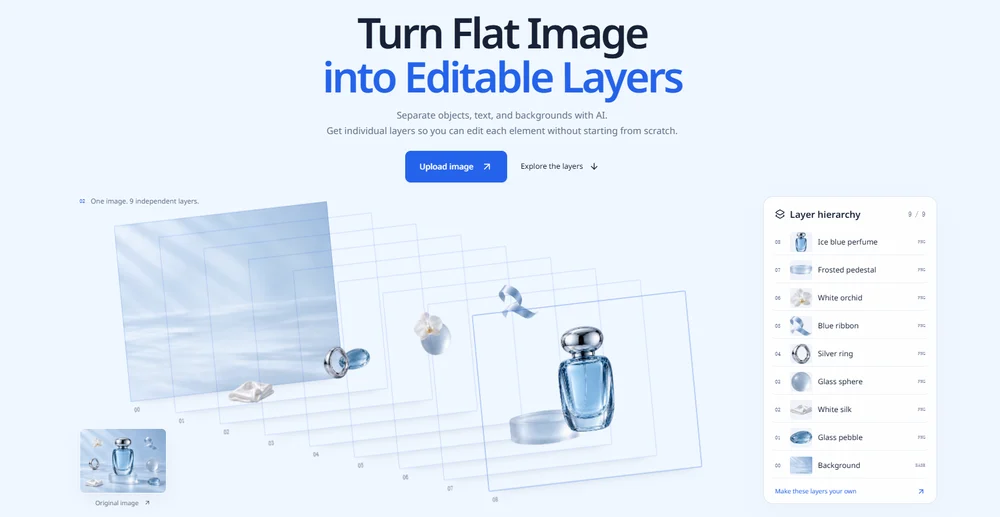
Image to Layers AI turns a flat image into separate layers, giving you a way to adjust individual elements instead of treating the whole composition as one unbroken picture. It uses AI to identify objects and the background, then presents the resulting elements as independent PNG layers. You can inspect the parts, change their visibility and order, move them, and download the assets or a version of the composition. The service is useful when a design needs a different arrangement or when you want to prepare visual elements for further work, without manually tracing every object as a first step.
Rather than producing a new image from a text prompt, the workflow starts with an image you already have. The aim is to preserve its overall design while making selected details easier to work with. Product imagery, campaign visuals, illustrations and collages are among the examples shown by the service. The output is a set of raster image layers; it is not a conversion into editable vector shapes or text.
From a flat image to separate elements
To begin, upload a JPG, PNG or WebP file. The page accepts files up to 30 MB, with image sizes from 0.26 to 36 megapixels and aspect ratios between 1:16 and 16:1. You can also provide optional instructions about what you would like separated. The tool then uses AI to find the layers, including a background layer, and displays the result for review. The number and boundaries of the elements depend on the image and the model’s processing; the site describes results of two to 17 layers, not a guaranteed count for every upload.
A composition with clearly distinguishable objects is a sensible place to start, as the service itself recommends. For example, a product scene might contain a bottle, decorative props and a backdrop. Separating those parts can make it easier to try a new arrangement or hide an element while retaining the rest. The background is handled as its own layer, and areas concealed behind a subject may be reconstructed by AI. That can help create material behind an object, but it also means the result should be checked rather than assumed to match unseen parts of the original exactly.
Review and adjust the layer stack
Once the separation is ready, Image to Layers AI provides an interactive view of the image and its layers. You can select an element, move it, hide or show it, rename it, and change its position in the stack. Reordering and visibility controls let you compare alternate compositions, while the preview shows the effect of those changes. These controls are intended for straightforward rearrangement within the result; they are not a full image-editing suite.
A practical workflow is to inspect the background and each independent element first, then hide or move one item at a time to see whether the separation is useful for the intended edit. You might test a different placement for a prop, make a subject more prominent, or compare a composition with and without a decorative detail. The examples on the site show how a scene can be explored layer by layer. Treat those demonstrations as illustrations of the interface, not as a promise that every upload will separate in the same way or produce identical results.
Use the layers in a design workflow
Separate elements can support product layouts, campaign and social variations, collages, and preparation for motion work. For a product image, a designer might use the isolated subject and scene elements to explore a changed layout. In campaign work, moving or hiding selected pieces can help test a new visual arrangement. Illustrators and collage makers can use separated parts as components for another composition, while motion preparation can begin with elements that are no longer merged into one flat image.
These are starting points for further creative work, not automatic guarantees of a finished campaign, collage, or animation. The page offers guides for basic image separation, bringing PNG layers into Photoshop, and deciding between layer separation and background removal. Its Photoshop guide describes placing the separate PNGs into a document, checking the layer stack, and saving a PSD there. The service itself does not list PSD export as an included output, so that workflow involves taking the downloaded assets into another application.
Download PNG layers or a composition
The individual elements are raster PNGs that use the full canvas size, preserving their placement relative to the original dimensions. You can download the layers separately or use Download all to get an organized ZIP containing every layer, including hidden ones, along with a manifest describing the composition. Export image instead saves the currently visible composition. This gives you a choice between collecting the editable-in-context components for later work and saving the arrangement currently displayed in the preview.
The distinction between layer assets and the composed image matters when choosing a download. If you expect to make further changes in a design application, the PNGs provide separate components to arrange there. If you only need the present visible result, the composition export is the more direct option. Layers remain pixel-based images: text is not provided as editable type, and the service does not include vector objects, scaling, rotation, or PSD export in its listed editing controls. Consider whether moving and reordering raster elements is enough for the task before relying on the result.
Check details before relying on a separation
AI separation can reinterpret fine details or reconstruct areas that were covered in the original. The site specifically advises checking results around overlapping objects, text and fine edges, and provides original and edited views for comparison. A separation is therefore best treated as a working set of assets to inspect. If an edge, label or hidden area is important, review it closely before using the layers in a final design. A background-removal cutout may be sufficient when you only need an isolated subject; layer separation is more relevant when you want several objects and a background as distinct parts.
Image to Layers AI also states that processing time varies with the image and the model’s queue. Paid results, including the original and layers, are saved privately for 30 days after completion; downloaded files remain available to you after cloud storage expires. Processing uses credits per delivered layer, with the background counted as a layer, while editing and downloads are free. Together, these details make the product’s role clear: it converts a suitable flat image into a reviewable set of PNG elements for composition work, with AI-generated separations that should be checked against the needs of each design.